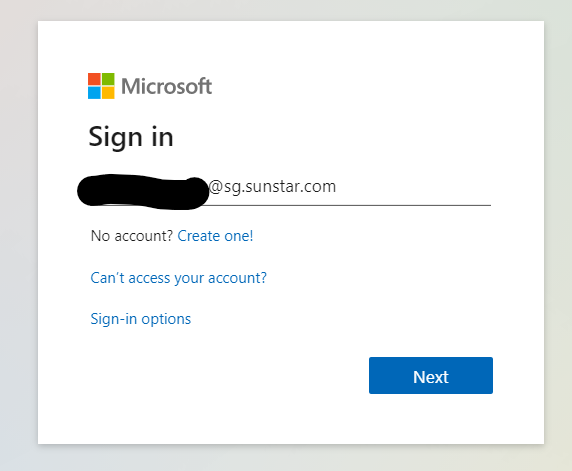
- Log in to office 365 via portal.office.com, and log in with your Sunstar account:
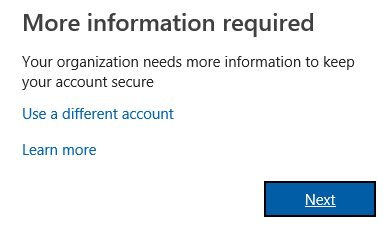
- When asked for “more information”, hit next:
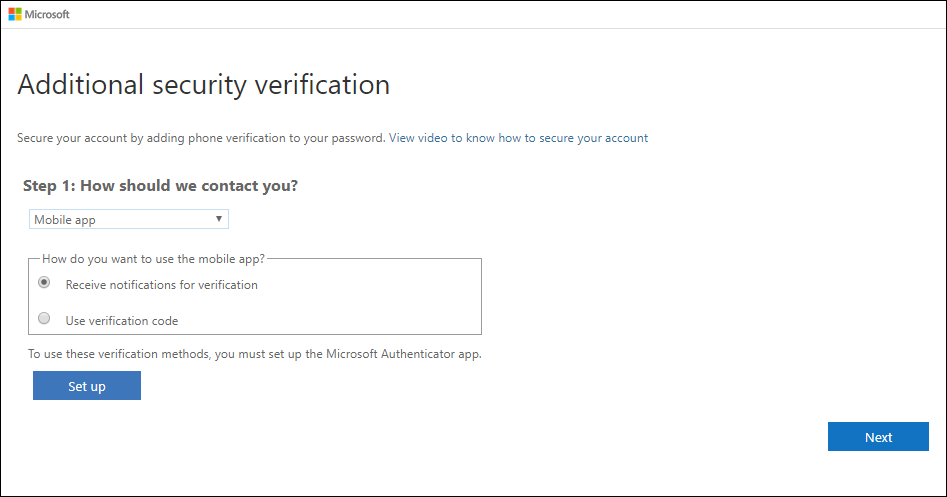
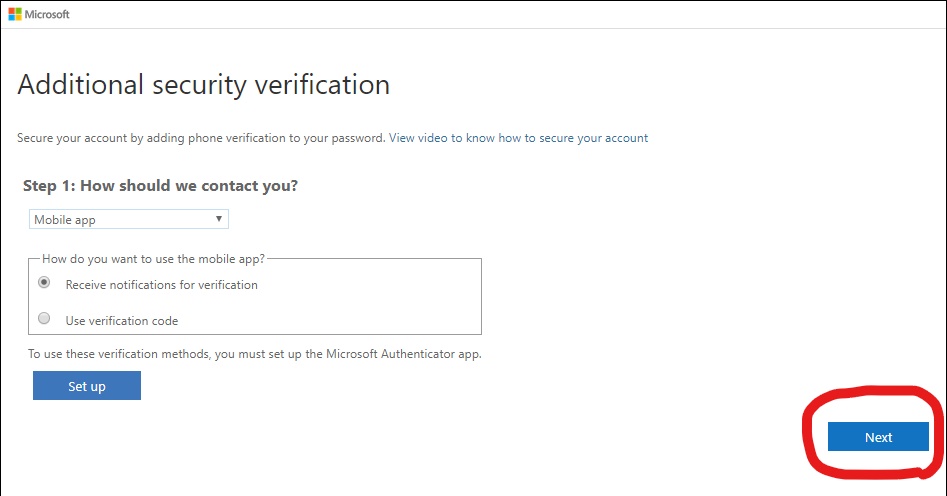
- At this page, change “authentication phone” to “mobile app”. Select “Receive notifications for verification”:
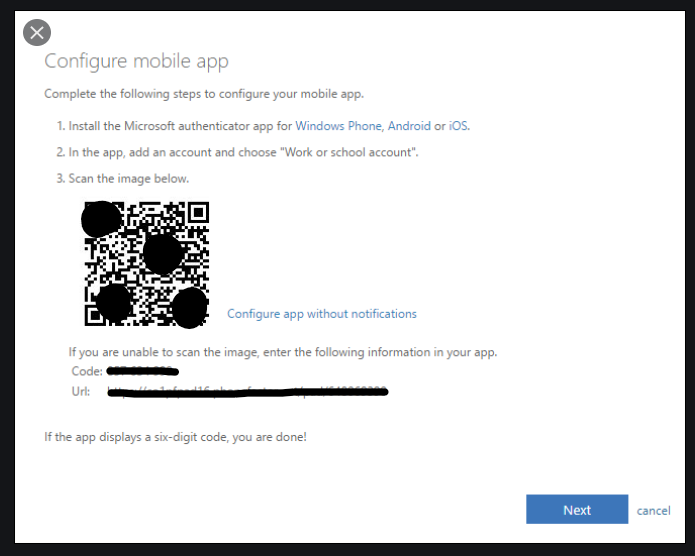
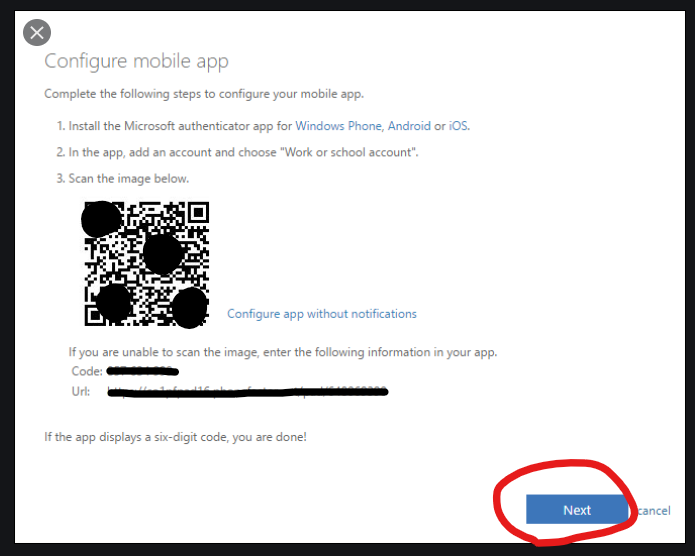
- Click set up, and a QR code will be flashed. Switch over to your mobile device to continue:
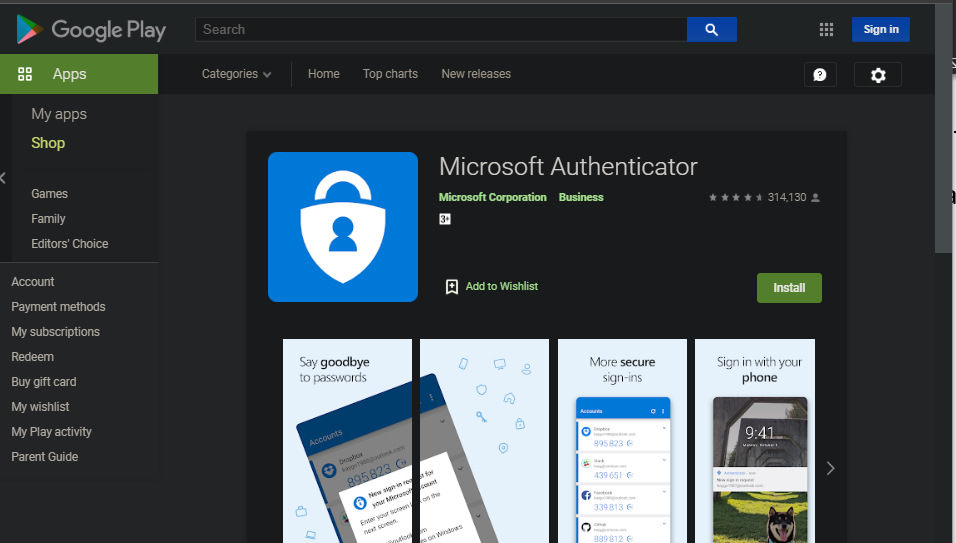
- On your mobile device, download the authenticator app from the app store:
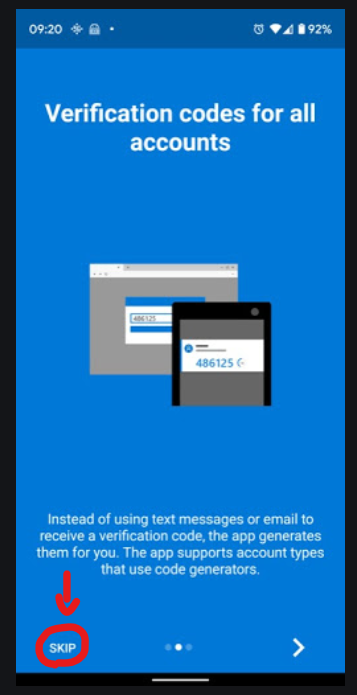
- On first launch, hit “skip” until you see the following screen:
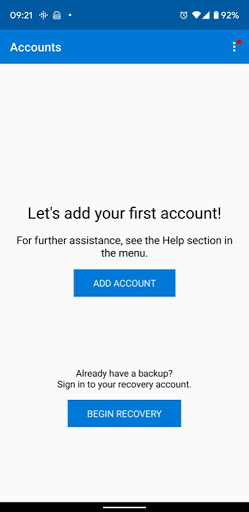
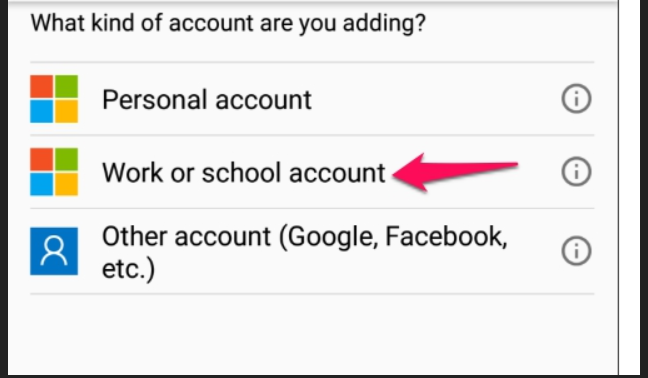
- Hit “Add account”, then “Work or school account”:
- Scan the QR code, and then once you see a 6 digit code on your phone, click next on your computer:
- You will be brought back to this screen. Click next.
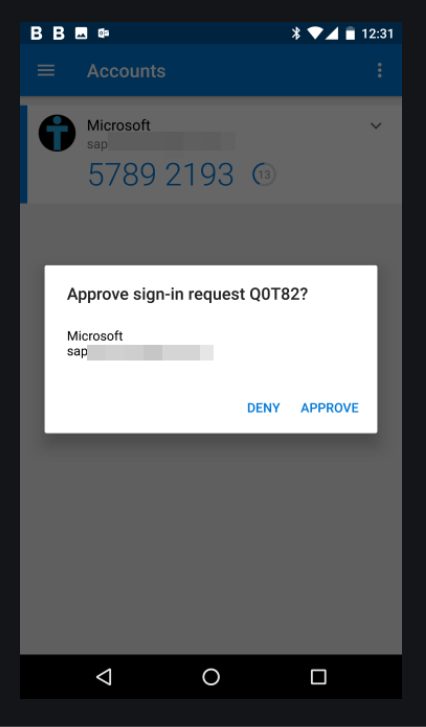
- A notification will be sent to your phone. Click approve:
- You will then be taken to this screen to enter a back-up phone number. Select your preferred country and enter your phone number:
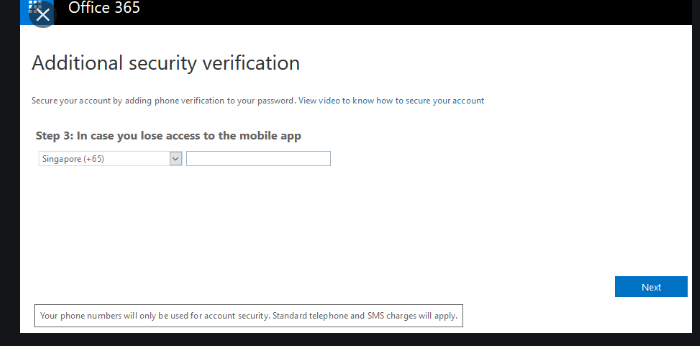
- Once you click next, the set up is complete. You may test it out by logging in again at portal.office.com
Comments
0 comments
Article is closed for comments.