- Login your O365 Account using the web portal (https://portal.office.com)
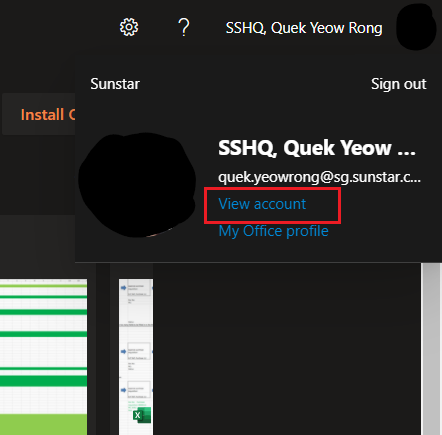
- Click on your name after you login.
- Click on "View Account"
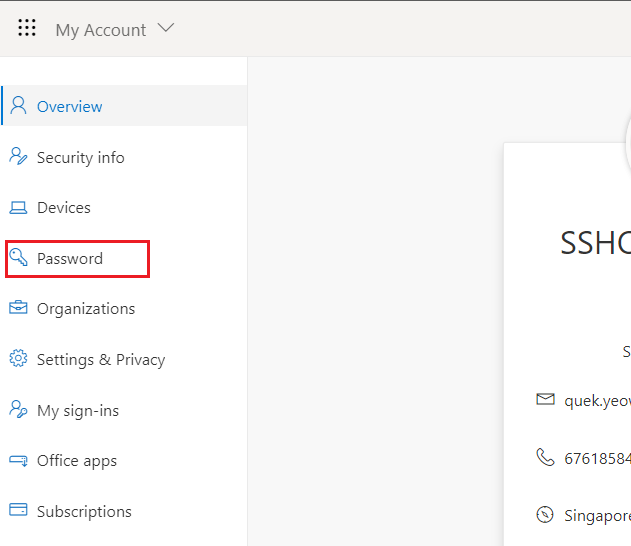
- Select "Password" on the left column
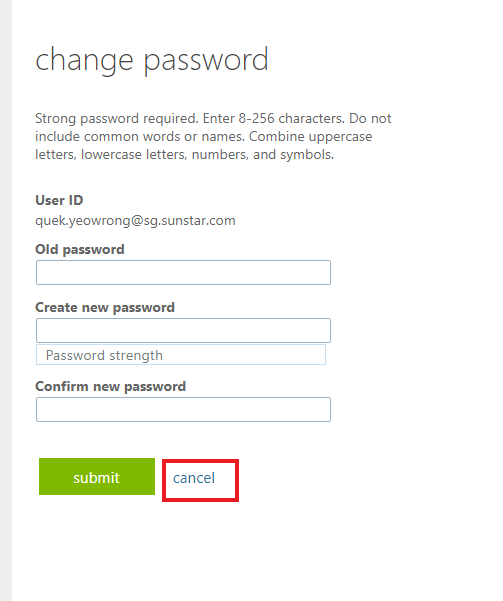
- Click cancel at the bottom
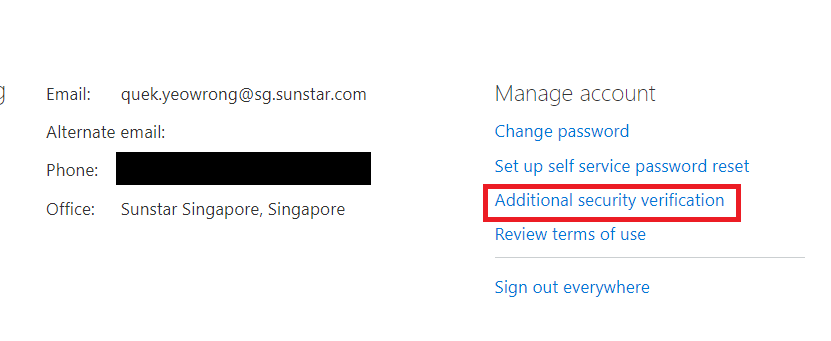
- Click on "Additional security verification"
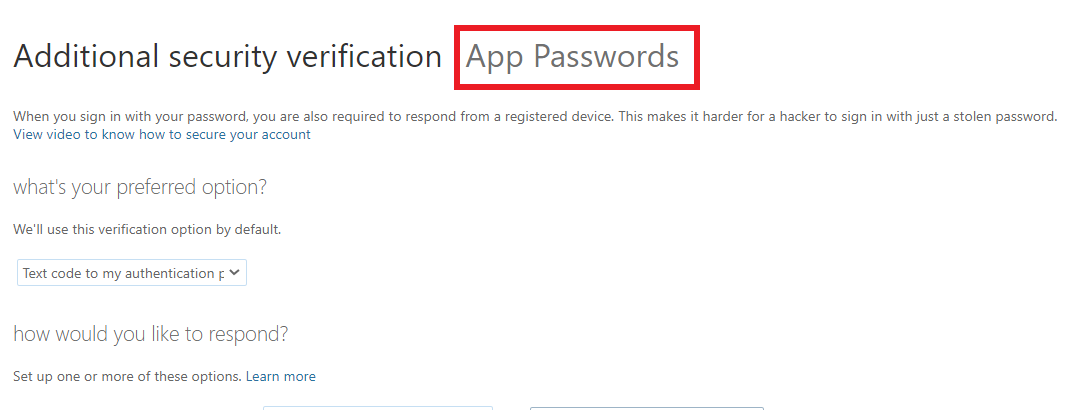
- Click on "App Passwords" at the top
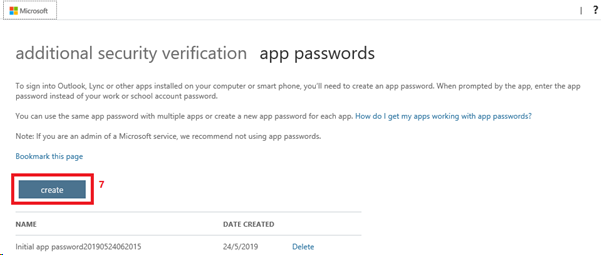
- Click on "create" to create new app password
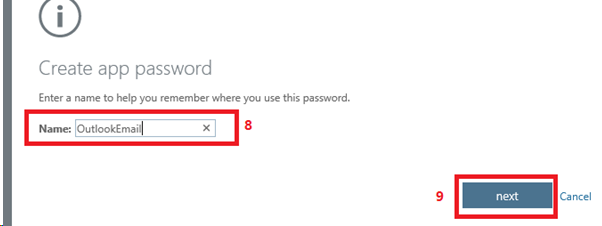
- Enter the name of the application that you will be using the App Password for. (E.g. OutlookEmail)
- Click "next"
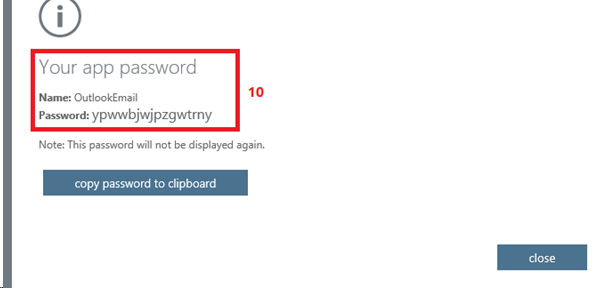
- A random app password will be generated. Enter the app password to your application before you click on "close". (Once you click "close", you can't see the password again. But you can delete or create new app password)
Comments
0 comments
Please sign in to leave a comment.